1Overview
Some photo services upload everything in a folder you add. Adding your library folders as they are would upload RAW files, videos and every shot of a burst.
With Outgoing, pictkura places only the imported photos that should be uploaded in the Outgoing folder. You add the Outgoing folder to the photo service instead of your library folders.
If you use Google Photos: “Back up a folder” on its web page (photos.google.com) works this way, with no setting to leave out RAW files or videos.
- For a RAW+JPEG pair, only the JPEG is placed
- For a burst, one shot is placed (when “Stack bursts into one tile” is on)
- For RAW-only shots and videos, a setting decides
2How it works
Placed as hard links
Photos in the Outgoing folder are not copies. Each is a second name (a hard link) for the same file as the photo in your library.
- No extra disk space is used (an embedded JPEG is a separate file, so it does take its own space)
- Removing a photo from the Outgoing folder does not delete it from your library
- Hard links cannot cross drives, so one Outgoing folder is made on each drive that holds photos
pictkura does not talk to the photo service. The photo service does the upload.
If you use Google Photos: the upload is done by the Google Photos web page (photos.google.com), so it runs only while that page is open in your browser.
3Getting started
- Open the pictkura settings and, under Outgoing, turn on “Also place imported photos in the Outgoing folder”. The Outgoing folder is made and its location is shown.
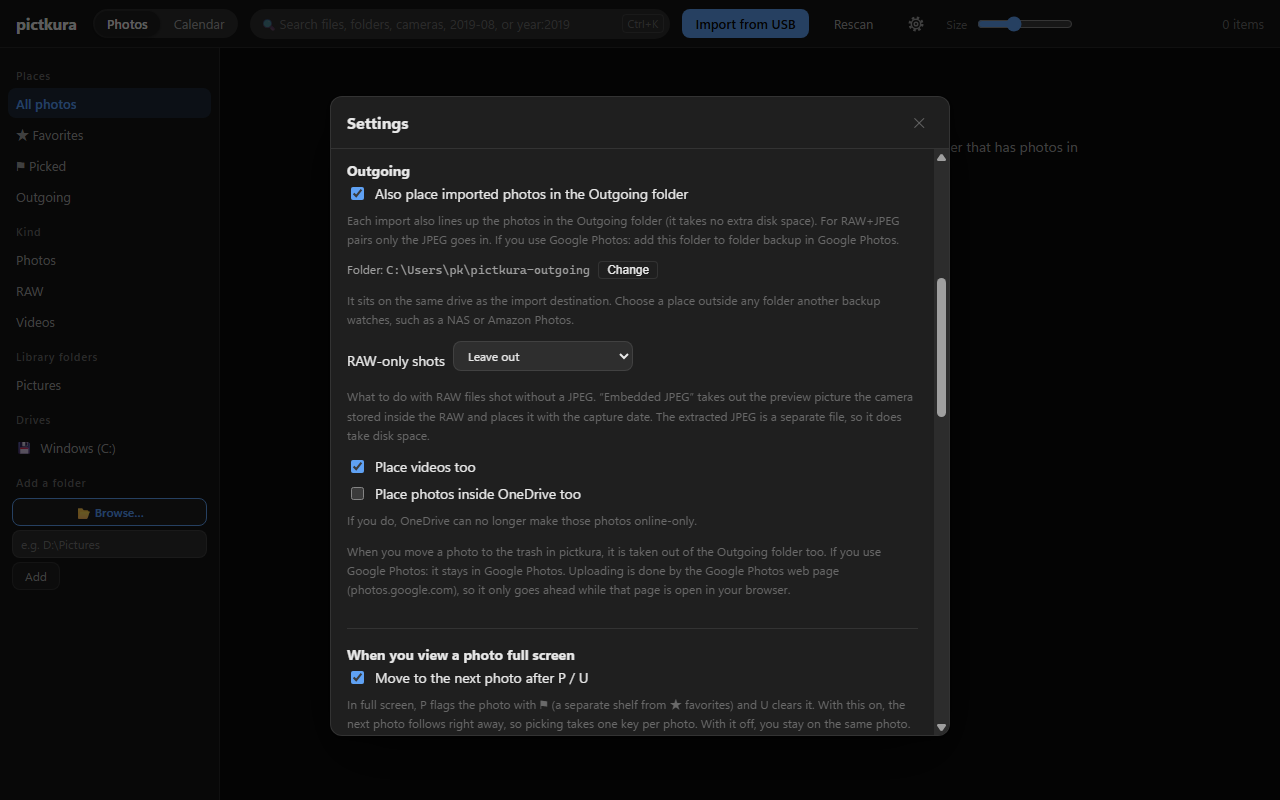
- Add the Outgoing folder from step 1 to your photo service. If you use Google Photos: open photos.google.com in your browser and add it with + → Back up a folder (Figure 2).
Figure 2. Adding the folder in Google Photos (an illustration; the real screen depends on the Google Photos version) - Import photos. When the import finishes, the number placed is shown as “N placed in Outgoing”.
4What goes in the Outgoing folder
| Imported file | In the Outgoing folder |
|---|---|
| JPEG, HEIC and similar | Placed |
| RAW+JPEG pair | Only the JPEG is placed |
| RAW-only shot | Set to “Leave out” (the default) or “Place the embedded JPEG” |
| Burst | Only the first shot is placed (when “Stack bursts into one tile” is on). A shot you mark ⚑ later is added too (while another shot of the same burst is in the Outgoing folder) |
| Video | Follows “Place videos too” (on by default) |
| Photos inside OneDrive | Not placed by default. If placed, OneDrive can no longer make them online-only |
5Adding and removing
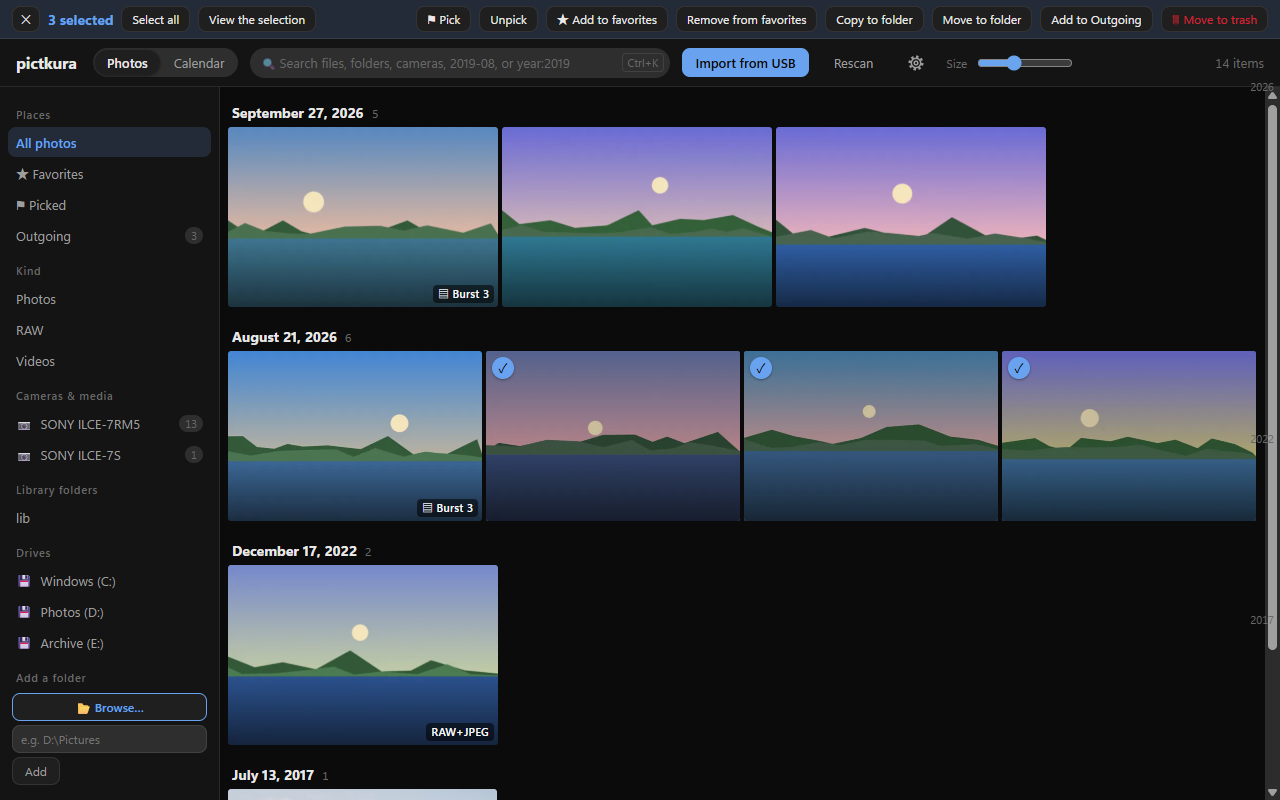
Adding: to add photos you imported earlier, select them in the grid and press “Add to Outgoing” in the selection bar. The right-click menu on a photo has it too. In the calendar, right-click a month heading to add a month or a whole year.
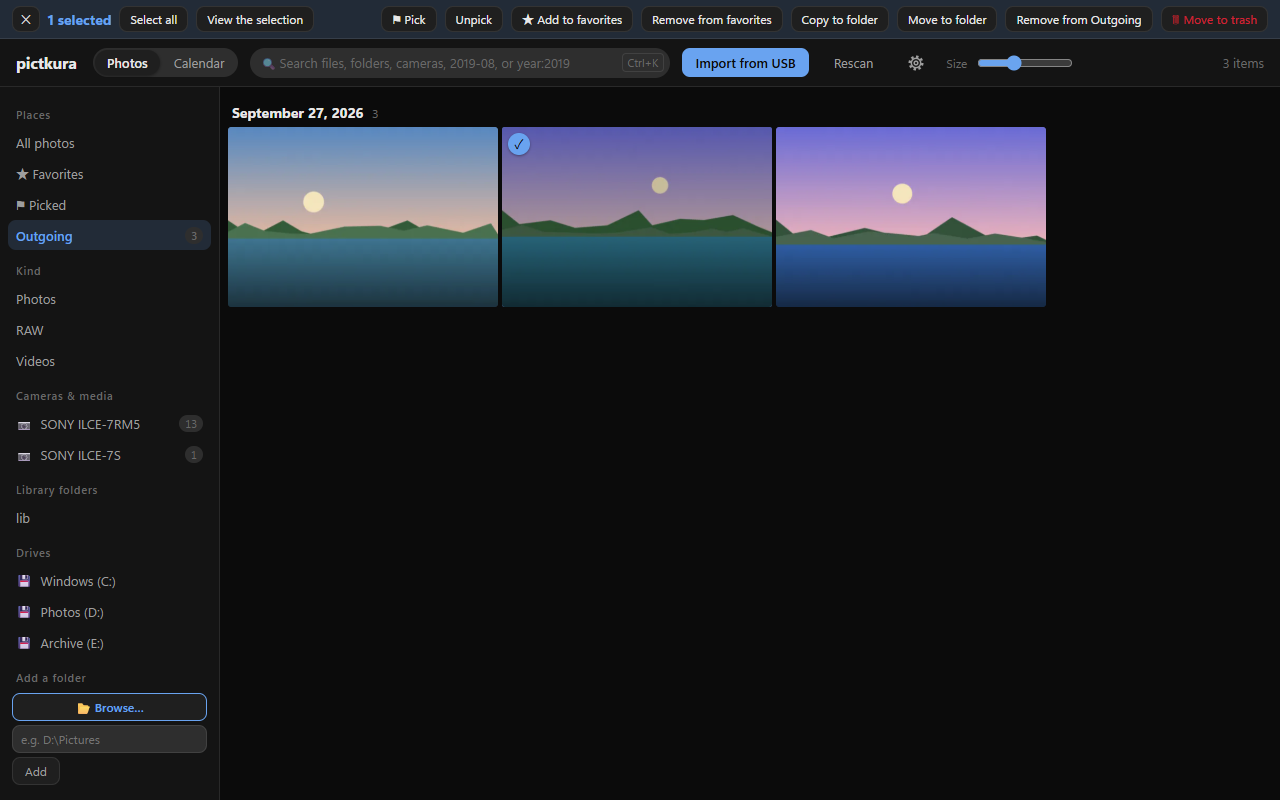
Checking and removing: press “Outgoing” on the left to list what is in the Outgoing folder. To remove photos, select them and press “Remove from Outgoing”.
6Notes
Photos already uploaded
Removing a photo from the Outgoing folder, or moving it to the trash in pictkura, does not touch what the photo service has already uploaded. If you use Google Photos: nothing is deleted from Google Photos.
Disk space
Photos are placed as hard links, so no extra space is used. Embedded JPEGs take their own space.
Drives
Outgoing works on drives that support hard links, such as NTFS and APFS. An Outgoing folder cannot be made on exFAT or FAT drives (common on USB sticks and SD cards).
Other backups
If a NAS, Amazon Photos or another service backs up your photos, keep the Outgoing folder outside the folders it watches. Inside, the same photos would be backed up twice.
Where an Outgoing folder cannot be made, and what happens when photos are deleted, are in section 9, Outgoing, of the manual.
Google Photos is a trademark of Google LLC.